Viewing and Editing Session Notes
Overview
After creating session notes, you may need to review them for reference, make edits to correct information, or update them with additional details. This guide covers how to access, view, and edit existing session notes in Praxis Notes.
Prerequisites
- A Praxis Notes account with appropriate permissions
- At least one client with existing session notes
- Basic understanding of creating session notes
Step-by-Step Guide
Step 1: Accessing a Session Note
- Navigate to the Clients Dashboard
- Select the client whose session note you want to view
- Click "View Sessions" to see all sessions for that client
- Find the session you want to view in the list
- Click the "View Details" button next to that session
Step 2: Understanding the Session Note View
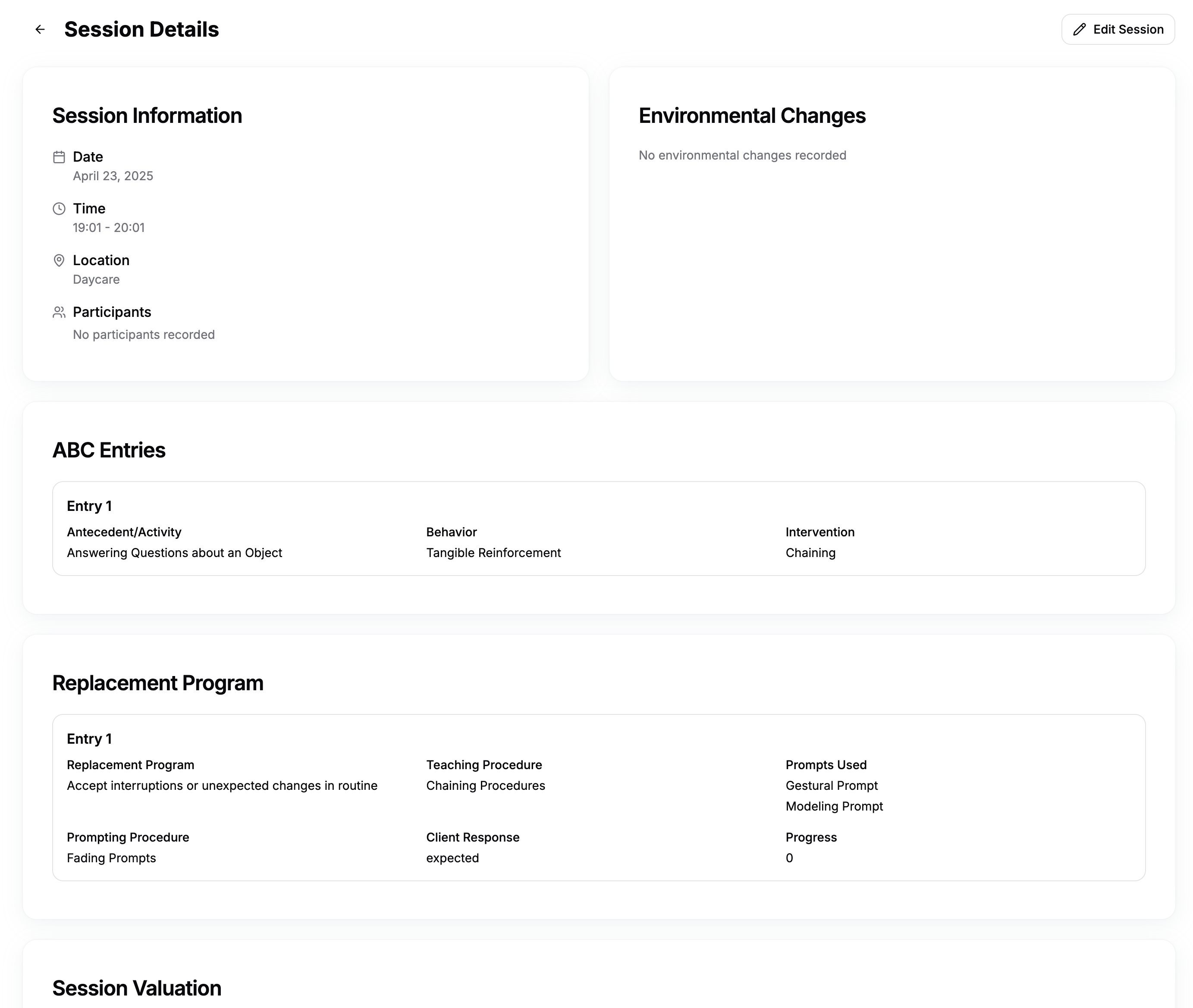
The session note view displays:
- Basic Information: Date, time, location, and participants
- Generated Note: The formatted clinical note created from your session data
- Original Form Data: All the information entered in the various sections of the form
- Action Buttons: Options to edit, download, or share the note
Step 3: Reviewing the Generated Note
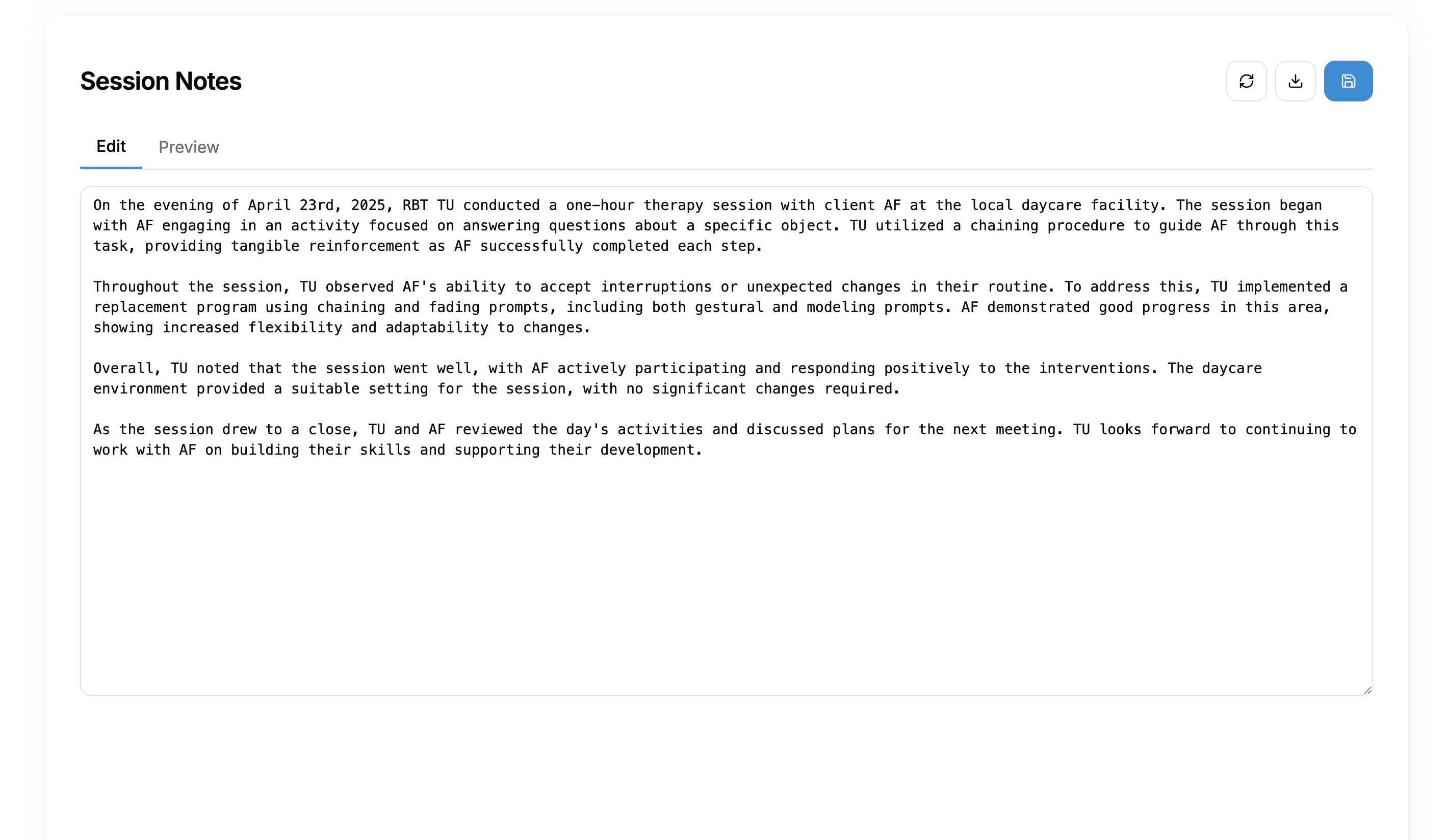
The generated note is formatted for clinical documentation and includes:
- Session Header: Client name, date, time, and location
- Participants: List of all people present during the session
- Environmental Factors: Any environmental changes documented
- Behavioral Data: ABC data entries formatted into clinical language
- Replacement Programs: Details of programs implemented during the session
- Clinical Observations: Your general observations in professional language
- Session Rating: How the session was evaluated overall
Step 4: Editing a Session Note
To edit a session note:
- Click the "Edit" button at the top of the session note view
- This will reopen the session form with all previously entered data
- Make necessary changes to any section of the form
- Click "Save Changes" to update the note
- Click "Regenerate Note" if you want the system to create a new formatted note with your changes
Step 5: Downloading Session Notes
To save a copy of the note:
- Click the "Download" button at the top of the session note view
- Select your preferred format:
- PDF: For printing or sharing professionally formatted documents
- CSV: For data analysis or importing into spreadsheets
- Plain Text: For simple text storage
Step 6: Sharing Session Notes
To share a note with authorized colleagues or supervisors:
- Click the "Share" button at the top of the session note view
- Enter the email address of the recipient
- Select permission level (View Only or Edit)
- Add an optional message
- Click "Send" to share the note
FAQ
Q: Can I edit a note after it has been shared with others? A: Yes, you can edit shared notes. Recipients will automatically see the updated version when they access the note.
Q: How long are session notes stored in the system? A: Session notes are stored indefinitely, unless deliberately deleted by a user with administrative permissions.
Q: Can I undo changes made to a note? A: The system maintains a version history. Click "Version History" in the note view to see previous versions and restore them if needed.
Troubleshooting
Problem: Cannot view certain sections of a note
Solution: Check your permission level. Some sensitive information may require elevated permissions.
Problem: Changes not saving when editing
Solution: Ensure you click "Save Changes" before navigating away from the edit form. If problems persist, try refreshing the page.
Problem: Generated note missing information
Solution: Verify all required fields are completed in the form. If information is missing from the generated note despite being entered, contact support.