Viewing Client Sessions
Overview
Praxis Notes organizes client sessions chronologically, allowing you to quickly view session history, track progress over time, and access detailed session information. This guide covers how to access and navigate the client sessions list.
Prerequisites
- A Praxis Notes account with appropriate permissions
- At least one client already added to your account
- Basic understanding of client management
Step-by-Step Guide
Step 1: Accessing the Client's Sessions List
- Navigate to the Clients Dashboard
- Find the client whose sessions you want to view
- Click on the client's name or select "View Details" to access their profile
- Click the "View Sessions" button to access all sessions for this client
Step 2: Understanding the Sessions List
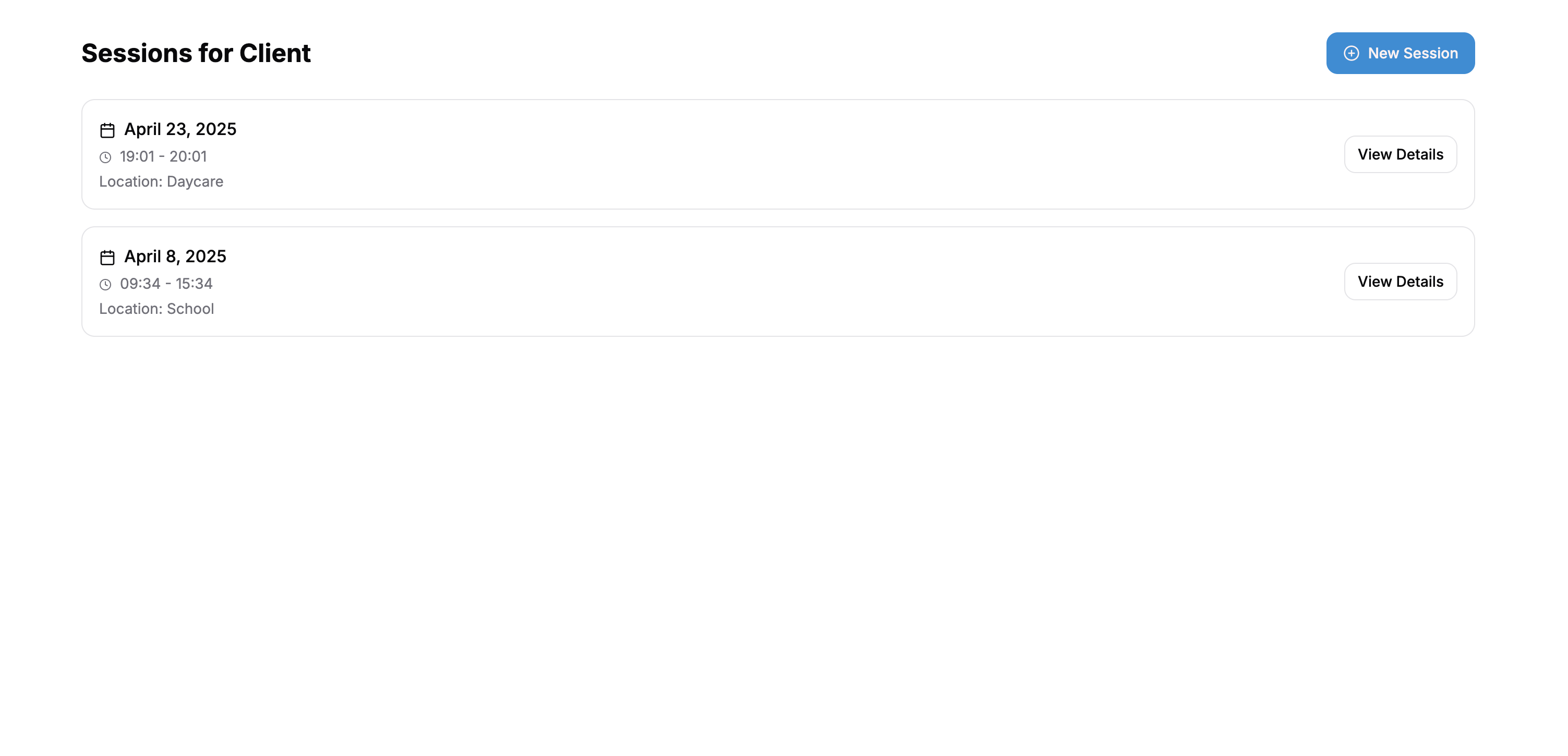
The Sessions List displays:
- Date: The calendar date when the session occurred
- Time: The start and end times of the session
- Location: Where the session took place
- View Details: Button to access the complete session record
Step 3: Filtering and Searching Sessions
To find specific sessions:
- Use the search bar at the top of the sessions list to search by keywords
- Use the date filter to narrow sessions by time period
- Use the location filter to view sessions that occurred at a specific location
Step 4: Sorting Sessions
By default, sessions are sorted with the most recent at the top, but you can:
- Click the column headers to sort by that field
- Toggle between ascending and descending order
Step 5: Accessing Session Details
To view complete information about a session:
- Click the "View Details" button next to the session you want to examine
- This will open the full session record with all documented information
FAQ
Q: How many sessions can I view at once? A: The sessions list displays 10 sessions per page by default. Use the pagination controls at the bottom of the list to navigate between pages.
Q: Can I export the list of sessions? A: Currently, the export feature is limited to individual session reports. Full list exports will be available in a future update.
Q: How far back can I see session history? A: Praxis Notes maintains your complete session history without time limitations.
Troubleshooting
Problem: Sessions are not appearing in the list
Solution: Verify that sessions have been created for this client. If you recently added a session, try refreshing the page.
Problem: Cannot access session details
Solution: Ensure you have the proper permissions to view detailed session information. If the issue persists, contact your administrator.