Creating New Session Notes
Overview
Creating detailed session notes is essential for tracking client progress, meeting insurance requirements, and maintaining professional records. Praxis Notes provides a structured form to collect all necessary data and generate comprehensive clinical documentation.
Prerequisites
- A Praxis Notes account with appropriate permissions
- At least one client already added to your account
- Basic understanding of client management
Step-by-Step Guide
Step 1: Initiating a New Session Note
- Navigate to the Clients Dashboard
- Find and select the client for whom you want to create a session note
- Click "View Sessions" to access their sessions list
- Click the "New Session" button in the top-right corner
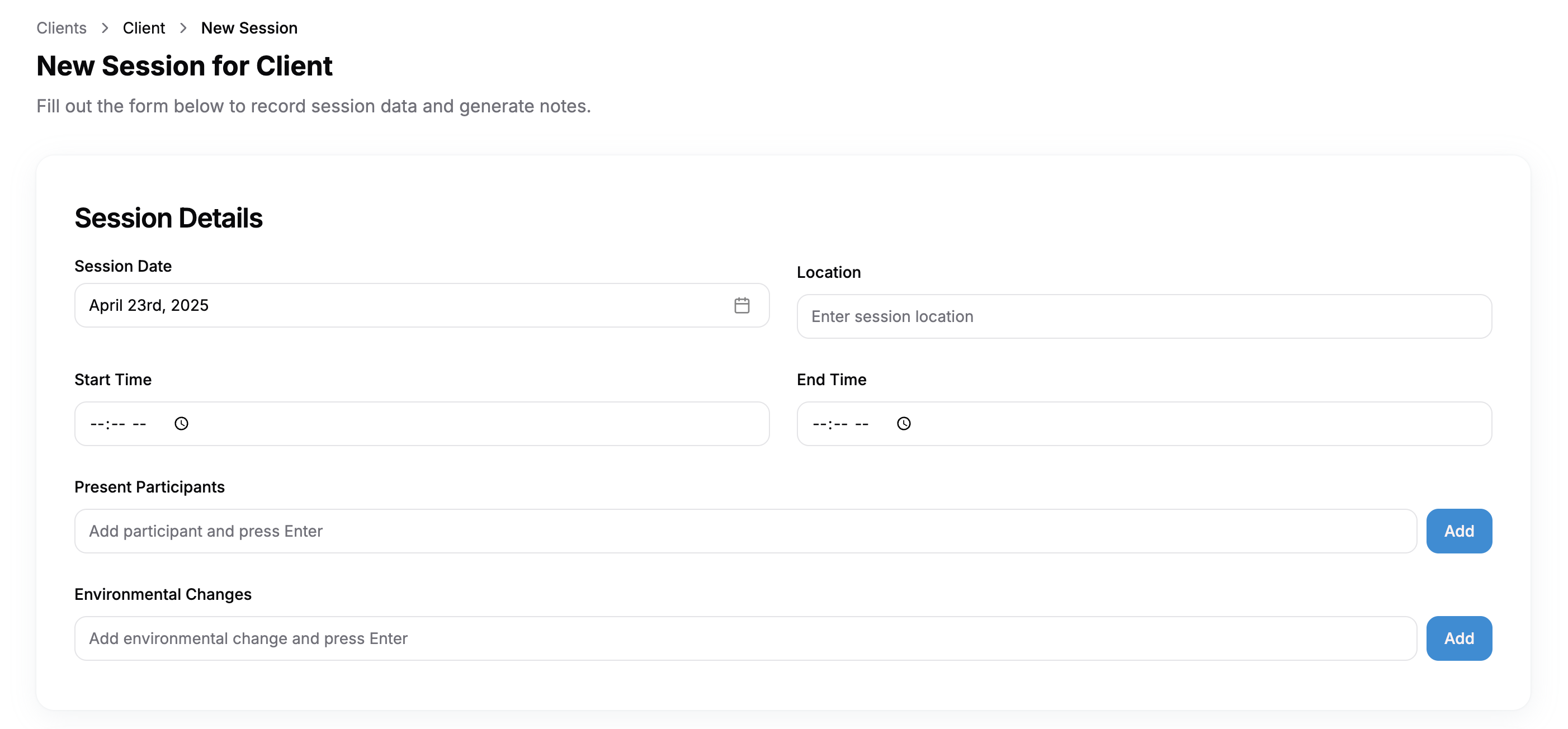
Step 2: Entering Basic Session Information
Complete the Session Details section:
- Session Date: Select the date when the session occurred using the calendar picker
- Location: Enter where the session took place (e.g., "Daycare", "Home", "Office")
- Start Time: Enter the session start time and select AM/PM
- End Time: Enter the session end time and select AM/PM
Step 3: Recording Session Participants
In the Present Participants section:
- Type each participant's role or name in the field (e.g., "Teacher", "Mom", "Therapist")
- Press Enter after each entry to add it as a tag
- To remove a participant, click the "×" next to their name
- Click "Add" to confirm all participants are included
Step 4: Documenting Environmental Changes
In the Environmental Changes section:
- Type any relevant environmental factors that may have influenced the session
- Press Enter after each entry to add it as a tag
- If there were no significant environmental changes, type "Nothing" and press Enter
- Click "Add" to confirm all environmental factors are documented
Step 5: Recording ABC Data
The ABC (Antecedent, Behavior, Consequence) section helps track behavioral incidents:
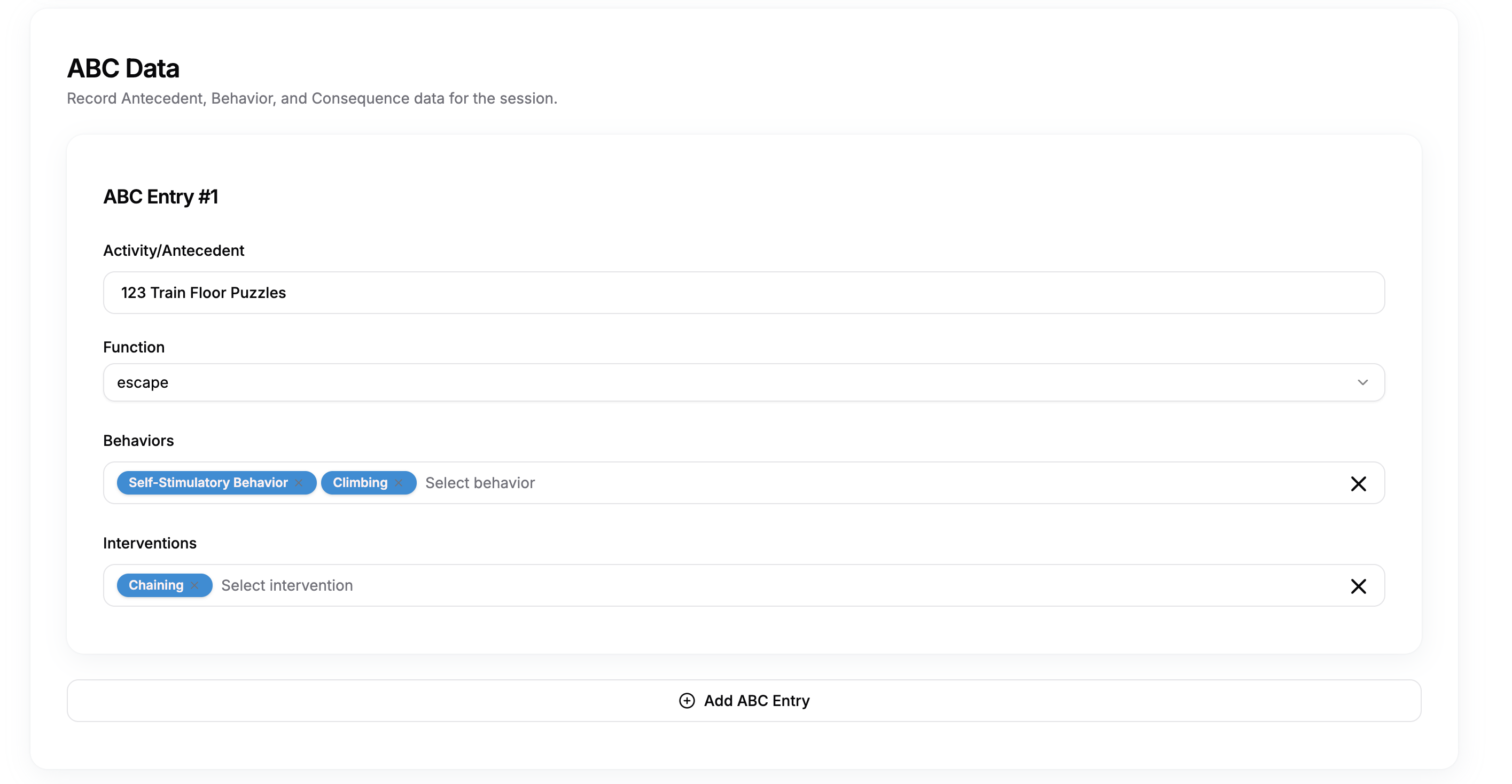
For each ABC entry:
- Activity/Antecedent: Enter what happened before the behavior occurred
- Function: Select the purpose the behavior served from the dropdown (e.g., "escape")
- Behaviors: Select applicable behaviors or type and add new ones
- Interventions: Select the strategies used to address the behavior
- Click "Add ABC Entry" if you need to document additional behavioral incidents
Step 6: Documenting Replacement Program Data
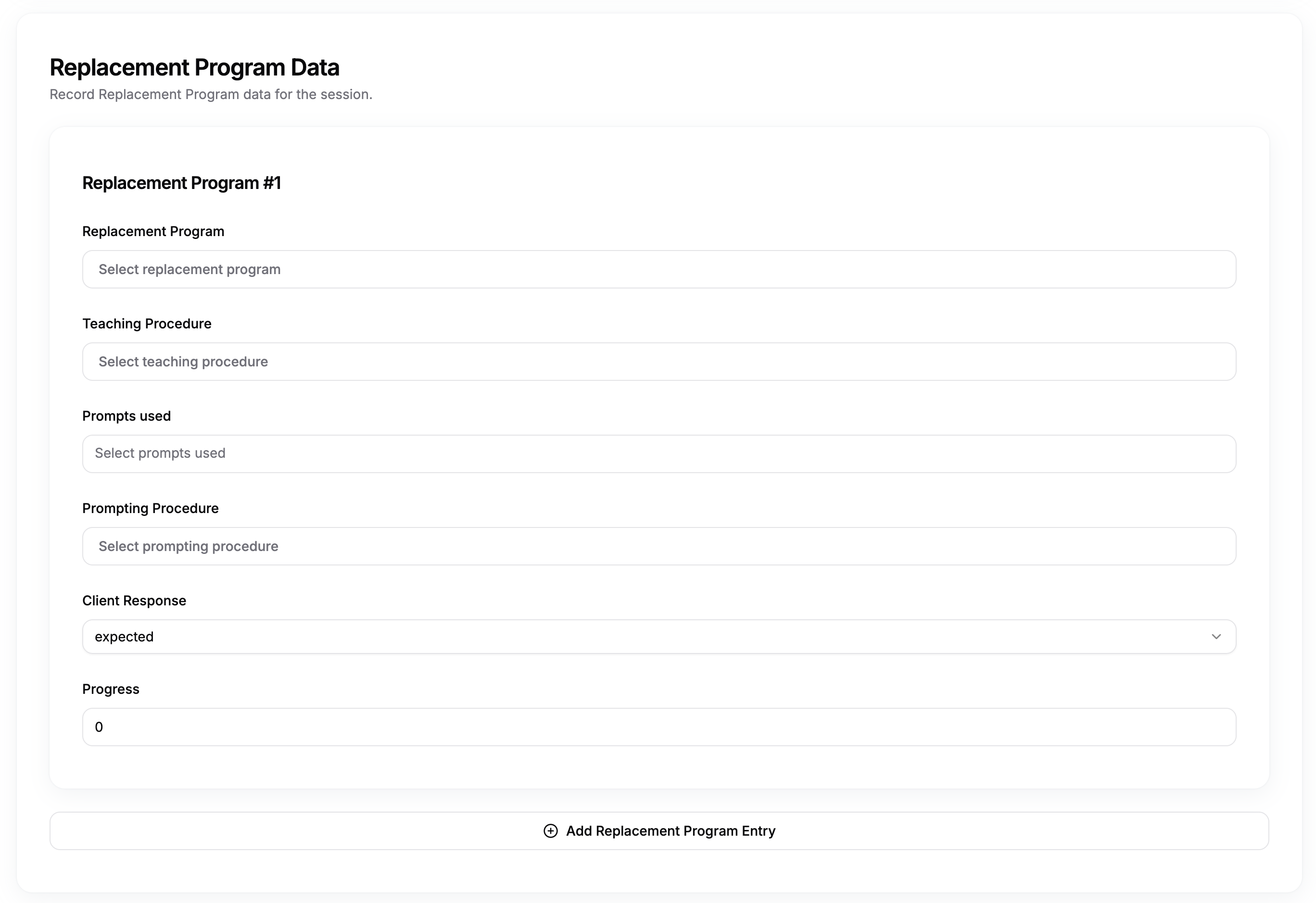
For each replacement behavior program:
- Replacement Program: Enter the program being implemented
- Teaching Procedure: Document the teaching method used
- Prompts Used: Select the types of prompts provided during instruction
- Prompting Procedure: Document the specific prompting strategy
- Client Response: Select how the client responded to the intervention
- Progress: Enter a numerical value representing progress (e.g., percentage)
- Click "Add Replacement Program Entry" for additional programs
Step 7: Rating the Session
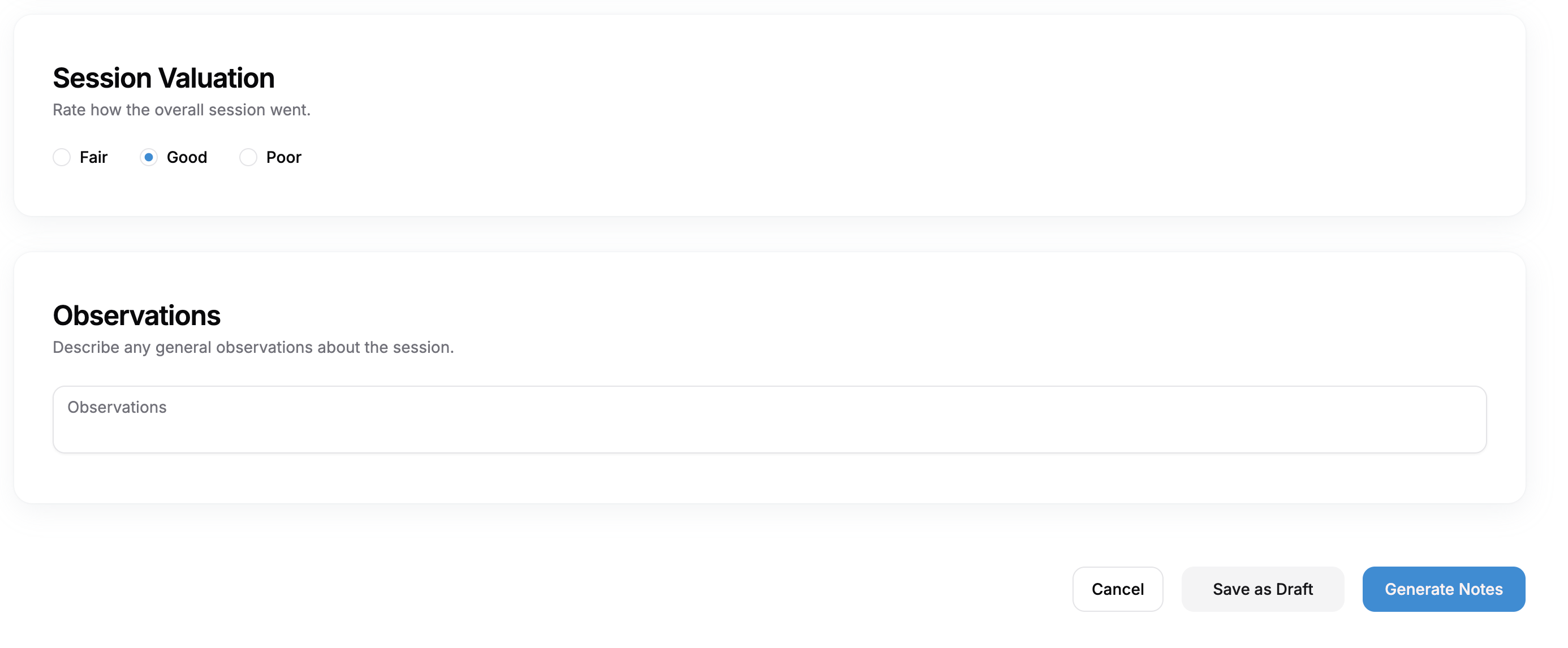
In the Session Valuation section:
- Select one option to rate how the overall session went:
- Fair
- Good
- Poor
Step 8: Adding General Observations
In the Observations section:
- Enter any additional notes, patterns, or important details about the session
- Be specific and objective in your descriptions
- Include information that doesn't fit neatly into the structured sections
Step 9: Generating or Saving the Note
When you've completed all required sections:
- Click "Save as Draft" to save your progress without finalizing
- Click "Generate Notes" to create a formatted clinical note based on your inputs
FAQ
Q: How long does it take to create a complete session note? A: With practice, most clinicians can complete a thorough session note in 10-15 minutes.
Q: Can I use templates for common session scenarios? A: You can save draft sessions as templates by using the "Save as Draft" option. These can be duplicated and modified for similar future sessions.
Q: Are all fields required? A: Required fields are marked with an asterisk (*). However, for comprehensive documentation, it's recommended to complete all relevant sections.
Troubleshooting
Problem: Cannot save or submit the form
Solution: Check for any fields highlighted in red, which indicate required information is missing.
Problem: ABC data entry isn't saving
Solution: Ensure you've selected both a behavior and an intervention before proceeding.
Problem: Session time validation errors
Solution: Verify that the end time is later than the start time and that both are in the correct format.